Edit your Profile
Log in and click on My Profile to access your profile. Please note that the recipe icon and adding shortcodes won’t work in your profile. The result will be ugly code. However there are many other tools available in the editor window to make your profile look nice. When viewing Author profiles your “avatar” will show up on the right side of the bio.
 Member Profiles
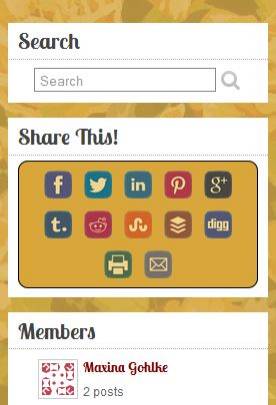
You can view other members’ bios and posts by clicking their name under Members in the right sidebar. All Members will be visible and when clicked visitors will view a page that has that member’s bio and also all posts the member has added.
Share This
In the right column, there are buttons to share the current content with various social media websites and by email.
Mark someone’s recipe or post as your favorite
The option to favorite is at the bottom of each post. You can view your favorites by clicking My Favorties link in the top menu of the site. There you can manage your favorites too.
Adding a post/recipe
To add a recipe, first log in, then go to the very top of the web page where there is an administrative bar. Click +New. You will be taken to the administrative area of the web site with a window open to enter a new post.
First, if you are new to online editing, take a minute to hover your mouse over each tool for a description of what it does.
The last tool in the top row inserts a recipe.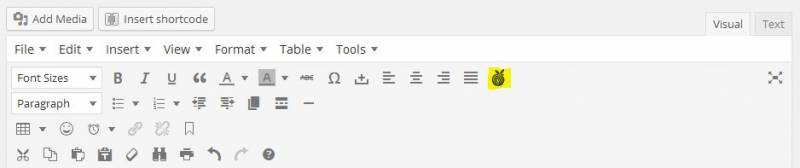
A pop up will come up and you can enter recipe information. (If no popup, check your pop up blocker settings) It is important that you enter each ingredient and each step on its own line. For headings use a colon at the end of the line. When you are finished entering information, click the “save” button at the bottom of the pop up. Please note you can also edit later, even after your recipe is published. Please note that the recipe block placeholder that is in the post does not represent the finished recipe’s formatting. You can preview changes or view the post to see how it will look.
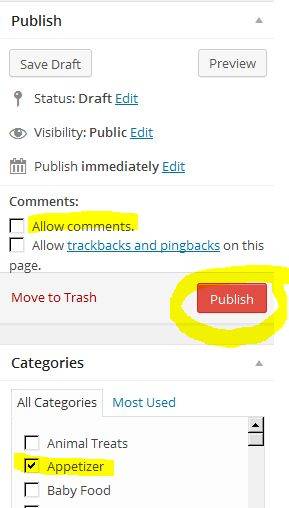
It is very important that you choose at least one category in the post page. You can also add categories.
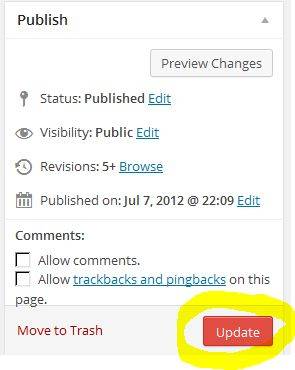 To publish, click the publish button or update if you’ve already published.
Comments
Comments are turned off by default.
You can enable comments for each post you add. The option is shown in the Publish box at the right when you are editing. Also if comments have been made they will show in the bottom of your post editor window. In your dashboard you will see an area to manage comments left for your posts. You are shown only the comments for your content so don’t be afraid to delete etc. If you allow comments, only other LOGGED IN members of this site will be commenting on your posts. Public comments are not allowed. That rule could be changed down the road but for now it will be members only. Otherwise you will need to log in to moderate your comments.
Tips about adding photos.
So many of us use digital photos. When we upload to servers like facebook the system resizes the photos to a good size for viewing both by dimensions and by disk usage (byte size) The process is also automatic on this server but the site will perform better if images are resized prior to uploading. If you experience time outs or error messages when you try to upload large photos you might want to resize smaller before uploading. One cheat is to go to facebook and do it there. There are also many other websites online that will “crunch photos for you. picresize.com is a good one. You can also download a free program called irfanview to resize photos nicely. It has many other features such as batch resize, watermark and a thumbnail page generator.
The ideal situation is for the uploaded photo to be:
- no larger than 800 pixels on its longest side
- no more then 80 kb in byte size.
The server will not accept uploads larger than 32mb from the front end of the website but photos are rarely that large.
Videos can be quite large.. You can also add videos to your posts. It is suggested that you upload to youtube and link to them.
You can use the shortcodes to add Youtube, Vimeo, etc – choose yes for “RESPONSIVE” so they resize nicely for smaller devices.
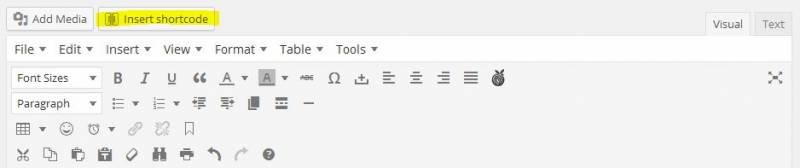 You can also go to this website and enter your youtube link to get responsive code and enter it in “text” tab mode. This is good if you want to add a video to your profile since shortcodes won’t work in the profile.
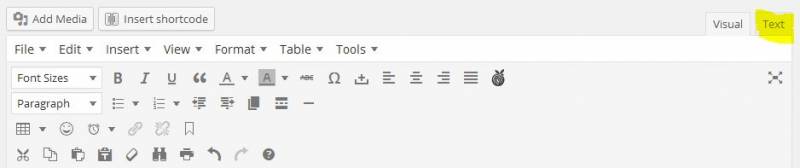
If you notice code has disappeared after switching to the visual tab, don’t be concerned. The styles have been added it to the site internal code so it will remain responsive.
This page is open for comments in case you have any questions. The conversation might be helpful to others. Reminder: Only logged in members can comment.